How to Disable Turbo Boost on an Intel Mac
INTEL MAC / macOS 13+
Why disable Turbo Boost?
Some Intel Macs get pretty loud when the CPU is busy. Turbo Boost lets the processor run above its base clock speed when conditions allow. Disabling it is one way to trade some peak performance for potentially lower heat and fan noise. Results depend on your Mac, workload and cooling condition. It won’t fix every overheating problem.
Before you start
TurboKiller requires a compatible Intel Mac running macOS 13 or later. It does not support Apple Silicon. The project is still experimental: testing on some Intel Macs does not guarantee compatibility with every model or macOS configuration. You do not need to disable System Integrity Protection (SIP). Keep it enabled.
Install TurboKiller
Download TurboKiller.dmg from the official GitHub release below. Open the DMG and drag TurboKiller to Applications, then open the app. When updating, quit the old app before replacing it. The app and background helper are Developer ID signed, but the current release is not Apple-notarized, so macOS may show a security warning on first launch. Read the warning before deciding whether to proceed. If prompted, allow background operation and follow the system-extension approval or restart prompts. If installation remains blocked, report the problem instead of weakening system security.
Download — TurboKiller.dmg ↓Turn Turbo Boost off or back on
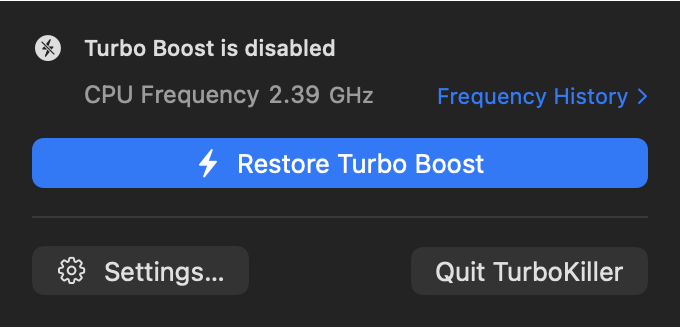
Click the wind icon in the menu bar to open TurboKiller. Choose “Kill Turbo Boost” to request that it be turned off. Check the displayed status after the operation; clicking the control alone does not confirm success. You can request “Restore Turbo Boost” through the app at any time when you need performance again. Check the actual status afterward. The icon’s badge distinguishes enabled, disabled and unknown states. The menu bar and popover show the latest sample-average CPU frequency. Open “Frequency History” for 5-minute, 15-minute or one-hour history. Red and blue backgrounds indicate Turbo Boost enabled and disabled; the dashed line marks the base frequency when available. In Settings → Monitoring, choose 1, 2, 5 or 10-second sampling (default 2), hide the menu bar number or change background recording. History lasts for this session only.
When should you leave Turbo Boost enabled?
CPU-intensive work, such as compiling code or encoding video, may take longer with Turbo Boost disabled. Leave it enabled when completion time matters more than fan noise. Try your usual workload and compare responsiveness before deciding which setting suits you.
Troubleshooting
If an operation reports an error or the state is unknown, check the displayed status and avoid repeatedly clicking the control. Do not disable SIP or run unverified terminal commands. Report problems through the official GitHub Issues link below, including your Mac model, macOS version and the complete error message or a screenshot.
Feedback — GitHub Issues ↗